
Learning how to make a budget in Google Sheets is something almost every beginner wants to do, but staring down a completely blank spreadsheet can feel instantly overwhelming.
I have got you completely covered. I created a free Google Sheets budget template that handles all the heavy lifting and formulas for you. In just a few simple steps, your personalized monthly budget will be fully set up and ready to use.
Hello and welcome! If you’re new here, my name is Olivia. I am a financial coach and Blogger passionate about all things personal finance. Budgeting intentionally is the exact reason I was able to pay off all my consumer debt, grow my net worth, and take full control of my financial future. Budgeting doesn’t have to be restrictive or intimidating — with the right setup, it’s actually deeply satisfying.
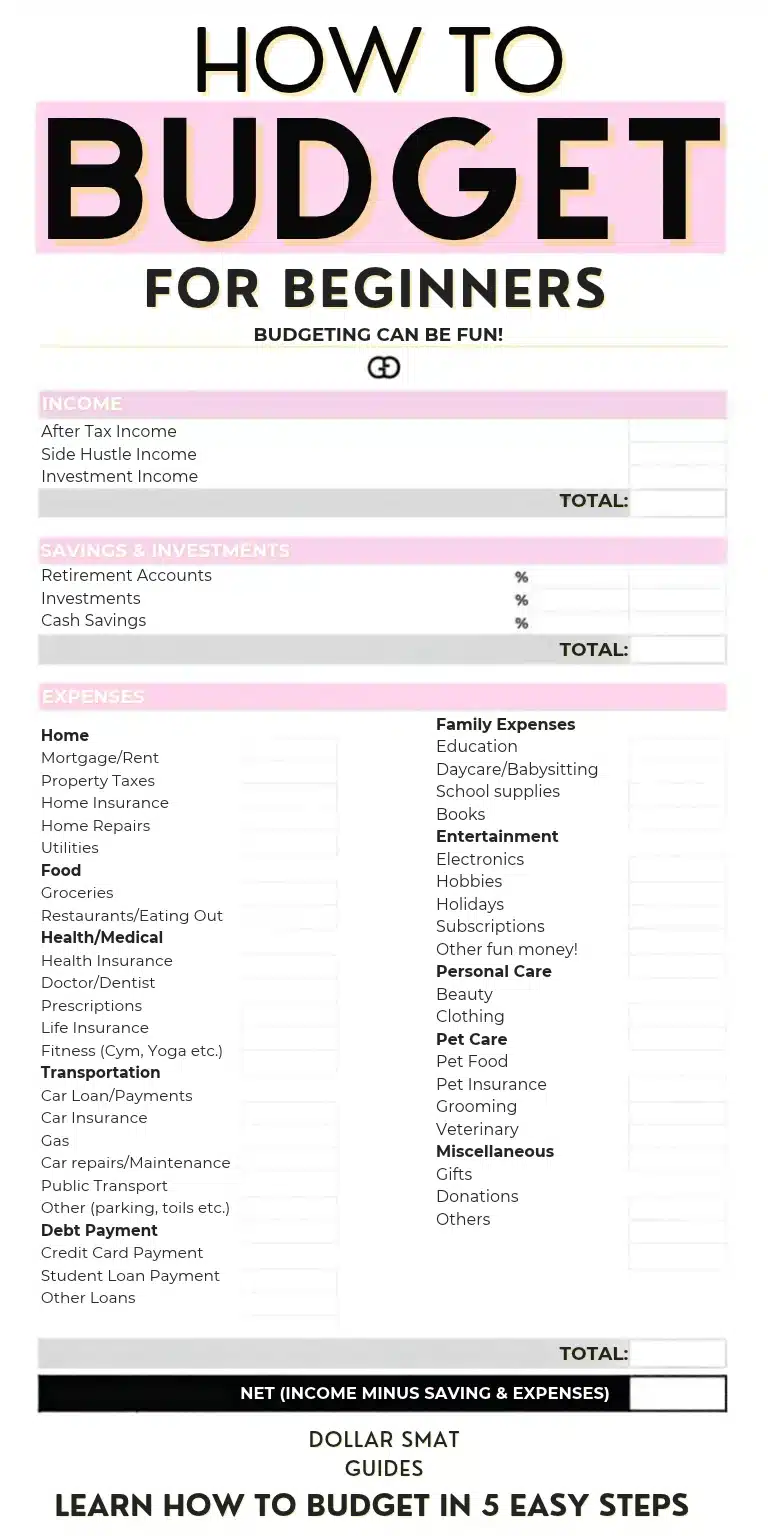
⚡ Quick Answer: The 5-Step Budgeting Framework
Making a budget in Google Sheets comes down to 5 simple steps: (1) List all income sources, (2) Categorize monthly expenses and sinking funds, (3) Subtract expenses from income to find your margin, (4) Track actual purchases weekly, and (5) Duplicate and reset for the month ahead.
🎁 Grab Your Free Google Sheets Budget Template
Pre-built formulas, auto-updating weekly tracking columns, and automated color-coding — zero spreadsheet experience needed.
📋 In This Guide
+
- Getting Started: Setting Up Your Month Ahead
- Step 1: List Your Income (Earned & Supplemental)
- Step 2: List All Expenses & Sinking Funds
- Step 3: Subtract Expenses From Income (Real Numbers Example)
- Step 4: Track Your Spending Moving Forward
- Step 5: Rinse and Repeat Each Month
- Common Budgeting Mistakes to Avoid
- Frequently Asked Questions
Getting Started: Setting Up Your Month Ahead
The very first thing you’ll want to do is open your free copy of the Google Sheets budget template. Once you have it open in your browser, come right back here so we can walk through it step-by-step.
We are going to prepare a monthly budget for the upcoming month. Every calendar month has its own unique rhythm — birthdays, seasonal bills, car registrations, or holidays. Effective budgeting means looking forward at what is coming rather than only reviewing what you already spent.
If you’re completely new to budgeting or using Google Sheets, head directly to the Weekly Budget Tracker tab. That tab is built specifically for beginners who want simple, stress-free money management.
Step 1: List Your Income
Step number one is to list every dollar coming in. This includes your primary salary, freelance earnings, side hustle revenue, child support, or investment payouts.
The template conveniently separates your income into two distinct buckets:
- Earned Income: Your regular take-home pay, overtime, contract gigs, and any money subject to taxes.
- Supplemental Funds: Money transferred from designated savings accounts or sinking funds (such as pulling $300 from your vacation fund to cover a family weekend getaway).
💡 Net vs. Gross: For beginners, budgeting with Net Income (your actual take-home paycheck after payroll taxes and health insurance) is significantly easier. If you prefer using gross salary, make sure to add taxes and retirement deductions as line-item expenses under Step 2.
What If My Income Changes Every Month?
If you run an online side business or do freelance work, your monthly cash flow naturally ebbs and flows. The golden rule here: never budget around your highest-earning month.
Instead, look back at your lowest-earning month from the past six months and set that as your conservative baseline. For example, if your side hustle brings in anywhere from $300 to $800, build your baseline budget around $300.
If you end up making $750 that month, wonderful! That extra $450 is a strategic surplus that can go toward high-interest debt, accelerated emergency savings, or building extra cash reserves. Looking for simple digital side incomes you can manage around busy schedules? Explore our guide on realistic passive income ideas for women.
Step 2: List Your Expenses
Step number two is to write down all of your expected expenses for the month. You don’t need overly complex accounting charts — a clean list grouped by everyday categories works best:
- Housing & Utilities: Rent/mortgage, electricity, water, internet, home maintenance.
- Food: Supermarket groceries, household essentials, and dining out/takeout.
- Transportation: Auto loan, gas, public transit passes, auto insurance.
- Lifestyle & Family: Cell phone bill, subscriptions, kids’ activities, personal care.
Don’t Forget the Once-in-a-While Expenses (Sinking Funds)
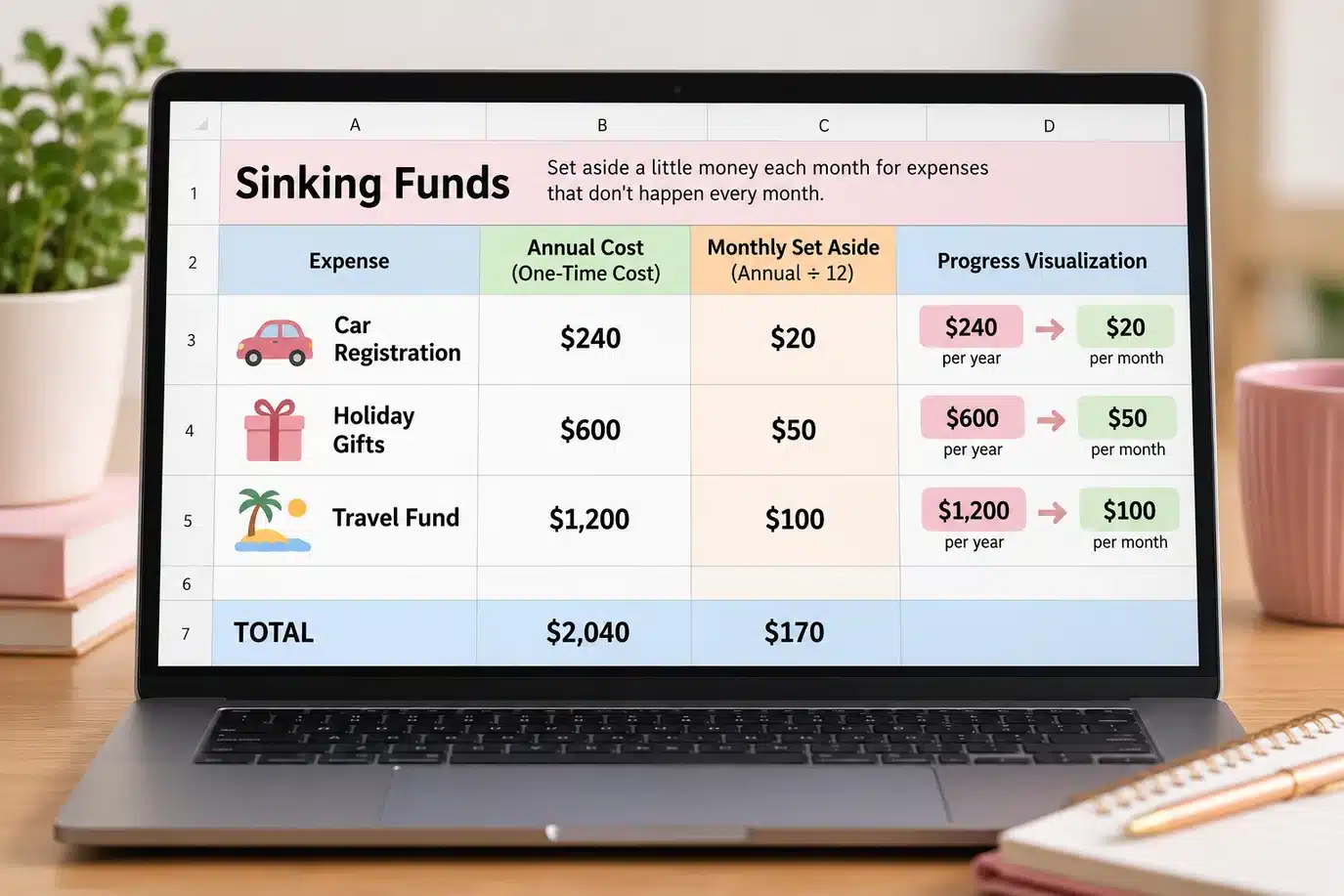
Infrequent expenses are what blow most budgets apart: annual car registrations, birthday gifts, holiday travel, Amazon Prime renewals, and back-to-school shopping. These are not real emergencies — they are predictable future expenses.
This is where sinking funds save the day. A sinking fund simply divides an upcoming annual expense into bite-sized monthly contributions:
🚗 Sinking Fund in Action
If your annual vehicle registration fee is $240 due in November, don’t scramble to find $240 in one week. Save $20 every month into a dedicated car sinking fund. When the registration renewal arrives, the funds are already waiting. Zero stress, zero credit card debt.
Step 3: Subtract Expenses From Income
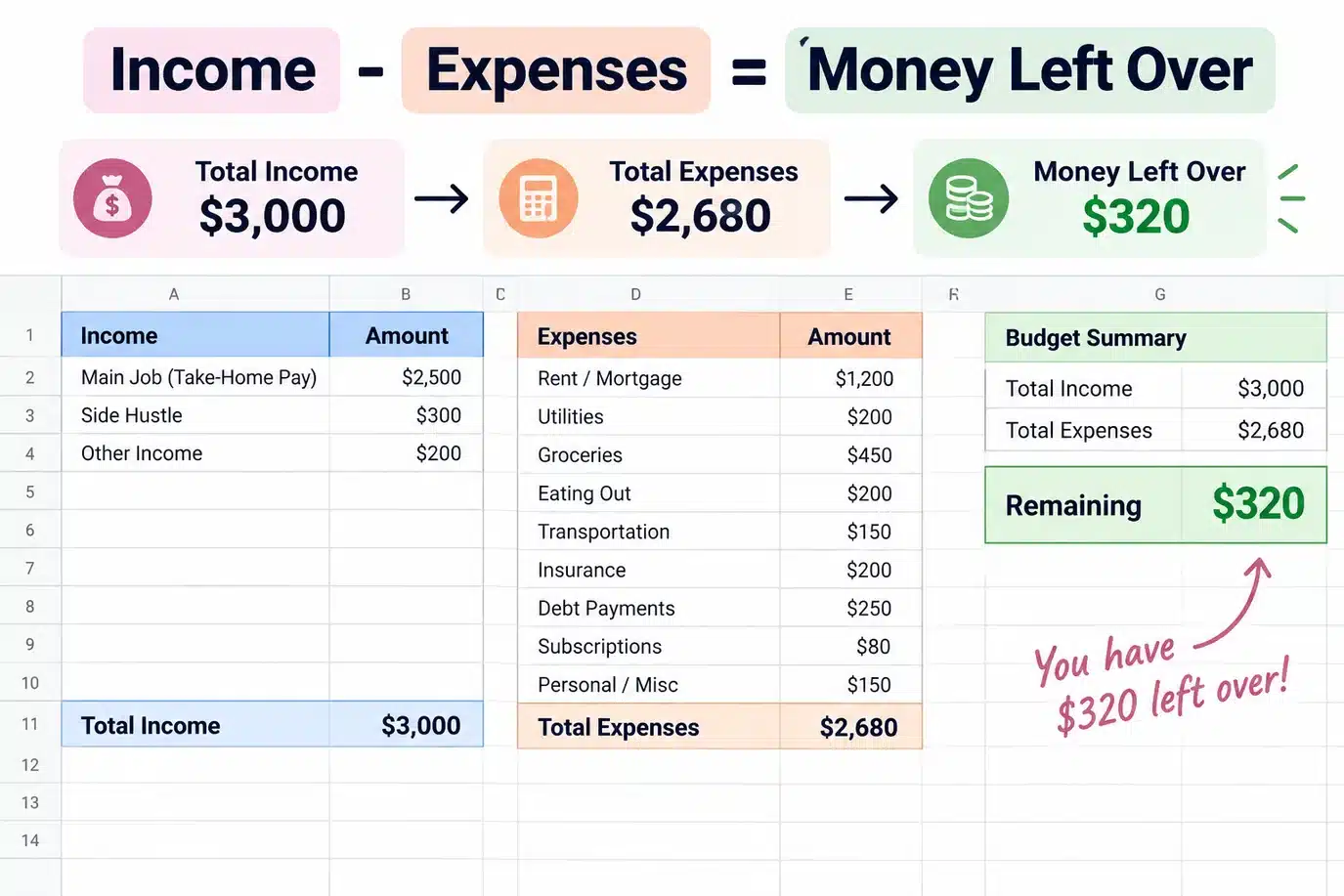
Once your numbers are plugged in, the template automatically calculates Total Income - Total Expenses with built-in visual cues:
- Green text: Positive surplus — your income exceeds expenses and you have money left over.
- Red text: Negative balance — you are projected to spend more than you earn this month.
A Real-Life $3,000 Budget Example
Let’s look at a realistic monthly example for someone with a take-home net income of $3,000:
| Expense Category | Budgeted Amount |
|---|---|
| Rent / Mortgage | $1,000 |
| Utilities (Electricity, Water, Gas) | $200 |
| Groceries | $450 |
| Dining Out & Coffee | $100 |
| Transportation & Gas | $250 |
| Auto & Renter’s Insurance | $150 |
| Phone & Internet | $60 |
| Kids’ Activities & Supplies | $150 |
| Personal Spending / Fun | $80 |
| Streaming & Subscriptions | $40 |
| Debt Minimum Payment | $200 |
| Total Expenses | $2,680 |
| Leftover Cash Surplus (Net Margin) | +$320 |
With $320 left over, you are in scenario three: a positive cash cushion. The key is giving every leftover dollar a clear assignment so it doesn’t quietly slip away:
- $150 assigned as an extra debt payoff acceleration payment
- $120 directed to a high-yield emergency savings fund
- $50 deposited into an upcoming car maintenance sinking fund
What If You Are in the Red? If your number is negative, do not despair. That awareness is your superpower. Review your list immediately for quick trims: pause 2 recurring streaming apps, negotiate your auto insurance rate, or meal-plan around supermarket sales. Trimming just $25 here and $40 there quickly swings your balance back into the green.
Step 4: Track Your Spending Moving Forward
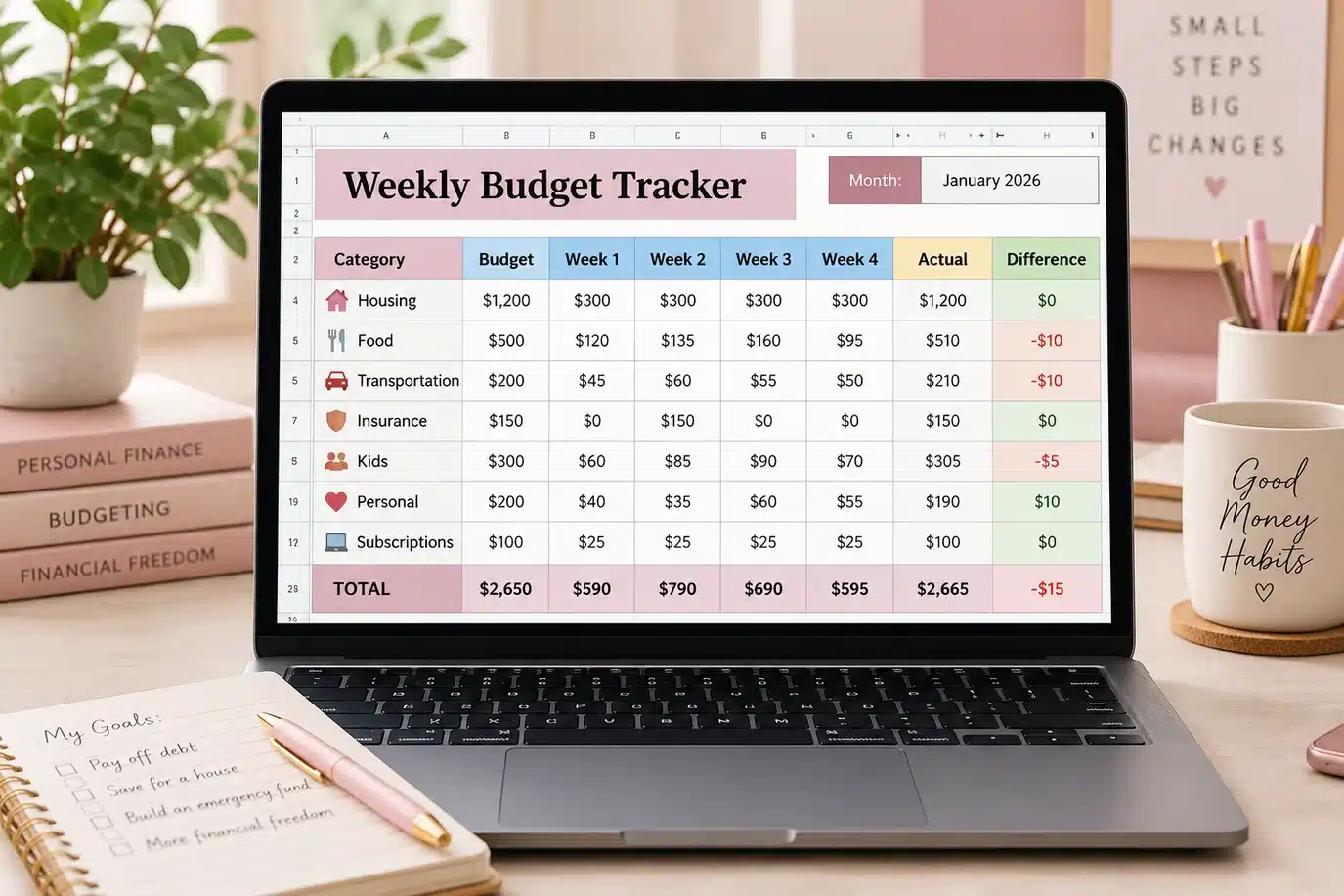
Creating the initial plan is only 50% of the equation. Weekly tracking is what transforms a static budget into true financial freedom. Here is how easy tracking is on the template:
- Label Your Weekly Columns: Add date ranges to the column headers for the current month (for example: Oct 1–7, Oct 8–14, Oct 15–21, Oct 22–31).
- Log Purchases As You Spend: Enter purchases under the relevant category and week.
- Use Quick In-Cell Addition: If you went to the grocery store twice in one week, type
=42+18directly into the cell and press enter. Google Sheets adds them instantly. - Observe the Automated Difference Column: The sheet automatically calculates your remaining budget balance. When you stay on track, it stays neutral; if you exceed a category limit, it alerts you in red.
- Leave Unused Cells Blank: Don’t enter zeros — keeping unused cells empty keeps the sheet uncluttered and easy to read at a glance.
Set a 10-minute recurring calendar reminder every Sunday evening or Friday afternoon to input receipts from your banking app. Once it becomes a 5-minute routine, money stress disappears.
Step 5: Rinse and Repeat Each Month
Budgeting gets noticeably faster each month because you start accumulating real historical spending patterns. At the end of each month, right-click the monthly tab, select Duplicate, rename it for the upcoming month, and adjust the target numbers based on what you learned.
Did you underspend on dining out? Great — sweep the difference into savings. Did your electricity bill jump during summer? Adjust your utility estimate accordingly. Treat budgeting as a living feedback loop rather than a rigid test.
Common Budgeting Mistakes to Avoid
Steer clear of these six common traps so your new budget sticks long-term:
- Building the spreadsheet but never tracking: A budget without tracking is just wishful thinking. Tracking is the diagnostic tool that shows what’s really happening.
- Ignoring micro-transactions: $4 drive-thru coffees, in-app purchases, and impulse drugstore snacks silently drain hundreds every month. Give them their own category.
- Setting unrealistically harsh restrictions: If you allow zero budget for dining, entertainment, or hobbies, you will burn out by week three. Budget realistic “fun money.”
- Skipping sinking funds: Holiday shopping happens every December; property taxes occur on scheduled quarters. Treat them as monthly installments, not surprise catastrophes.
- Copy-pasting the exact same numbers every month: No two calendar months have identical expenses. Tailor each budget to the month ahead.
- Quitting after an overspent month: Going over budget doesn’t mean you failed. It simply means you gathered data. Adjust the category, learn the lesson, and keep moving forward.
Frequently Asked Questions
Should I budget with net income or gross income?
Net income is strongly recommended for beginners. It represents the actual cash deposited into your checking account after taxes, Medicare, and payroll deductions. If you choose gross income, remember you must account for all tax withholdings as explicit expenses.
How often should I update and track my spending?
A weekly check-in (every Sunday or Friday afternoon) is the sweet spot for most busy households. Tracking daily on your phone also works well if you prefer logging transactions immediately after purchases.
How many months of historical bank statements do I need?
Looking back at 3 to 6 months of past bank and credit card statements provides an accurate average for fluctuating costs like groceries, gas, utilities, and discretionary spending.
I have never used Google Sheets before. Will this be too technical?
Not at all! The free template is pre-programmed with all math, color conditional formatting, and summary calculations. You simply type in your dollar numbers and the sheet calculates everything automatically.
Your Path to Financial Control Starts Here
Managing your money with intention does not mean sacrificing everything that brings you joy. It simply means you decide where your hard-earned money goes before the month begins, rather than wondering where it vanished at the end.
Grab your free Google Sheets budget template here, set up your categories for this upcoming month, and take it one weekly check-in at a time. You have got this!
📖 Keep Reading