Let me be honest about how I started, because if the technical side of blogging scares you, I was exactly where you are.
When I set up Dollar Smart Guides, my budget was tight. And the scariest part wasn’t the writing, the niche, or even the money. It was one question looping in my head: “How am I supposed to learn CODE to design my own website?”
I had no tech background and no designer budget. I had a dream, a cheap domain, and a dashboard full of words I didn’t understand.
Here’s what I wish someone had told me that day: you don’t need to learn code to start a blog. You need about 20 minutes, a domain, cheap hosting, and someone to walk you through the clicks in order. That’s this post. I built it from my own setup, mistakes included, so you can skip the confusion and go straight to live.
By the end of this guide, you’ll have:
- A real web address
- A working WordPress site
- Your first published post
Let’s build it. 🙂
📌 Pin This Page
This is your complete setup checklist. One sitting, one blog, live on the internet.
⚡ Quick Answer: The 7-Step Setup
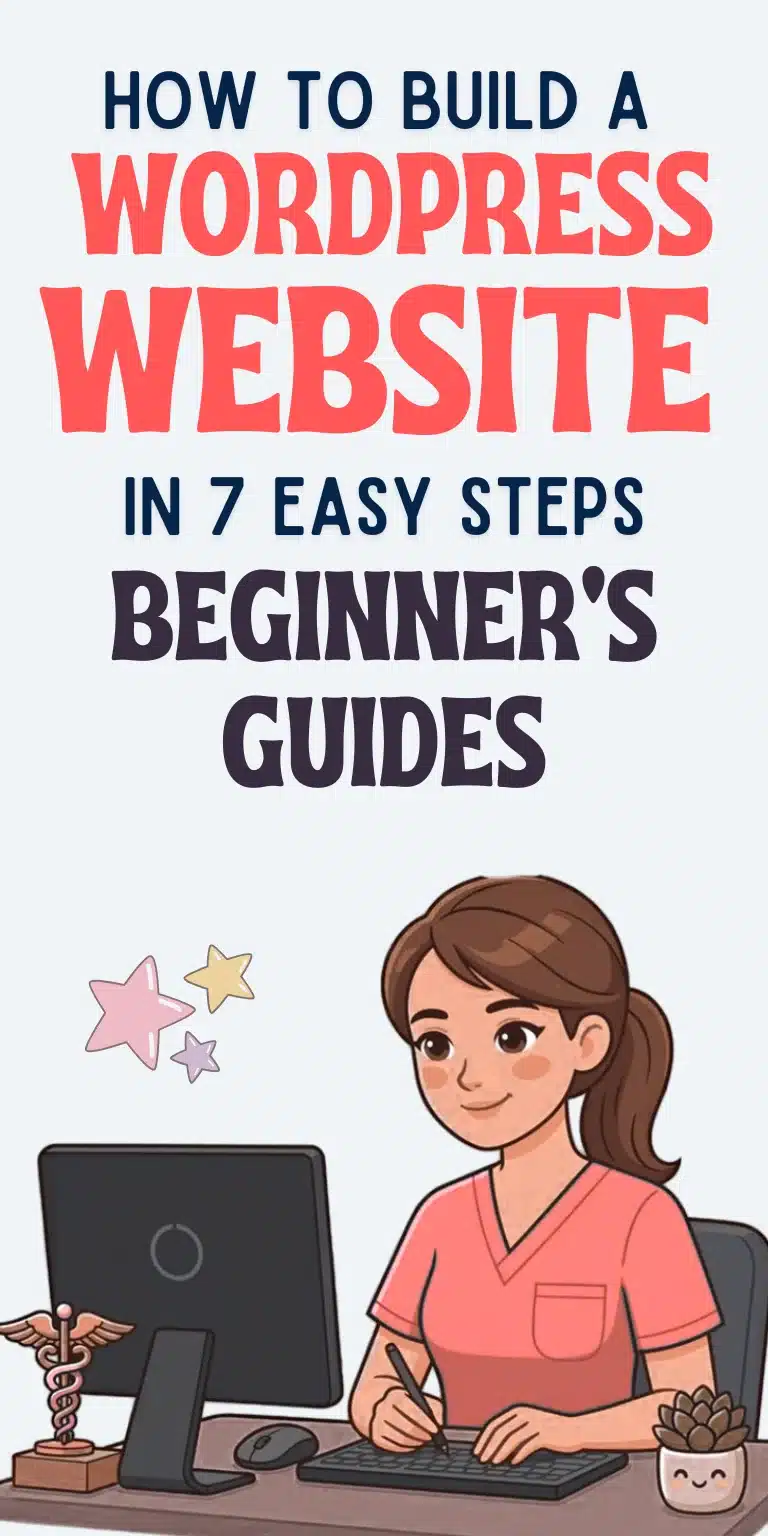
Setting up a WordPress blog comes down to 7 steps: (1) Pick WordPress.org (self-hosted), not WordPress.com, (2) Choose hosting by its renewal price, (3) Register your domain, (4) Install WordPress in one click, (5) Change 5 settings before your first post, (6) Pick a theme, then stop shopping for themes, and (7) Install only 5 essential plugins, then publish your first post.
📝 Grab Your Free WordPress Blog Launch Checklist
The one-page checklist version of this post, with checkboxes to tick off as you go — keep it beside your laptop on setup day.
📋 In This Guide
+
- Your 7 Steps at a Glance
- 1. WordPress.org vs WordPress.com — Pick the Right One First
- 2. Choose Hosting — By the Renewal Price, Not the Intro Price
- 3. Register Your Domain (Your Blog’s Address)
- 4. Install WordPress in One Click (Yes, Really One Click)
- 5. Change These 5 Settings Before Your First Post
- 6. Pick a Theme — Then Stop Shopping for Themes
- 7. Install Only These 5 Essential Plugins
- 8. Create Your Essential Pages (Before You Announce Anything)
- 9. Publish Your First Post 🎉
- Questions You’re Asking
Your 7 Steps at a Glance
- Pick WordPress.org (self-hosted), not WordPress.com
- Choose hosting by its RENEWAL price
- Register your domain
- Install WordPress in one click
- Change 5 settings before your first post
- Pick a theme, then stop shopping for themes
- Install only 5 essential plugins, then publish your first post
No code degree. No 50-video YouTube spiral. Let’s go. 👇
1. WordPress.org vs WordPress.com — Pick the Right One First
This confuses every beginner, so let’s settle it in 30 seconds. Two products share one name:
| WordPress.org | WordPress.com | |
|---|---|---|
| What it is | FREE software you install on hosting you pay for | A hosted service run by Automattic |
| Who handles the tech | You (with your host’s one-click installer) | They do |
| Plugins and themes | Any you want | Not on the free plan |
| Your address | yourname.com | Ends in wordpress.com on the free plan |
| Monetizing | Your ads, your affiliate links, your rules | Limited on the free plan |
| Cost | Hosting + domain | Free plan, or paid plans from $4/month billed yearly |
My recommendation: go self-hosted with WordPress.org. Think of it as renting versus owning. WordPress.com is a rental: easy move-in, but you can’t knock down a wall. WordPress.org is a house with your name on the deed. The small hosting cost buys you full control, and control is what turns a blog into a business later. You can also move to another host whenever you want.
You’re in good company, too. WordPress powers roughly 40% of ALL websites on the internet (W3Techs, October 2026). You’re picking the standard, not a gamble. 🙂
2. Choose Hosting — By the RENEWAL Price, Not the Intro Price
Hosting is your blog’s home on the internet: the place its files live so anyone in the world can visit. If your domain is your street address, hosting is the plot of land the house sits on.
For a brand-new blog, shared hosting is the right starting point. It’s affordable, handles beginner traffic easily, and every good host includes a one-click WordPress installer.
Look for these four things:
- One-click WordPress installation
- A free SSL certificate (the little padlock in browsers)
- 99.9% uptime
- 24/7 support, for the night something breaks at 11 PM
Now the part most guides hide: the price on the big banner is NOT the price you’ll pay forever. Look:
| Hostinger Premium | Intro price | What you pay upfront | Renews at |
|---|---|---|---|
| 48-month term | $2.99/mo | $143.52 | $10.99/mo |
| 12-month term | $3.99/mo | $47.88 | $10.99/mo |
See the jump? That $2.99 becomes $10.99, nearly 4 times higher. Here’s what a 12-month start really costs:
- Year one: $47.88
- Year two: about $131.88 for hosting + $19.99 domain renewal = $151.87
I’m showing you this not to scare you, but because NOBODY showed me, and budgeting surprises are how blogs die in year two. (Prices checked October 2026. Always glance at the renewal line in the cart before you pay. That’s the real price.)
My honest advice for beginners: buy cheap shared hosting at the start. That’s it.
If your budget is truly, painfully tight, there IS a DIY route. When I started, I only bought the domain and built my own hosting on Google Cloud with Hestia panel, because money was that tight. It worked, and I’m proud of it. But it’s NOT where I’d send a beginner today unless the budget forces it. Cheap shared hosting first. DIY only if you must. 💛
Checkout traps to dodge:
- Pre-ticked extras. Untick the paid add-ons hosts select for you.
- “Full refund” fine print. Money-back windows (usually 30 days) aren’t quite full refunds. Hosts deduct the free domain’s price if you cancel.
3. Register Your Domain (Your Blog’s Address)
Your domain is what readers type to find you, like finsavvypanda.com. Pick it with care, because changing it later means moving every link.
Four rules for a good domain:
- Keep it short and easy to say out loud. If you have to spell it three times on a call, it’s wrong.
- Skip hyphens and numbers. They look less professional and are hard to share verbally.
- Grab the .com if it’s free. It’s still the most trusted ending.
- Match your blog name or niche if you can. It helps readers remember you.
The simplest route: register your domain THROUGH your hosting provider during signup. Most hosts include a free domain for the first year on 12+ month plans, which keeps everything in one place and saves you $10–20 upfront. (When I started, my domain cost me around $17. Small money for the front door of your business.)
If you register separately (Namecheap is popular), you’ll need to point it at your host by updating DNS settings. Your host’s support team can walk you through it, but one-place signup is easier for a first blog.
4. Install WordPress in One Click (Yes, Really One Click)
This is the moment most beginners expect to get technical. It isn’t. Every good host installs WordPress from its own panel:
- Hostinger: open hPanel → Website → Auto Installer → choose WordPress
- SiteGround: Websites → New Website → Start New Website → WordPress
- cPanel hosts: Software → Softaculous Apps Installer → WordPress → Install Now
You’ll fill in a site name, an admin username, a password, and an email. That’s the whole installation, and it takes about 2–5 minutes.
Two rules for this screen:
- NEVER use “admin” as your username. It’s the first name login bots try. Pick something personal.
- Bookmark your login page: yourdomain.com/wp-admin. That’s your blog’s control room from now on.
When you log in for the first time, you’ll see the WordPress dashboard. Don’t panic at the menu. You’ll live in just five areas:
- Posts: your articles
- Pages: static content like About
- Appearance: design
- Plugins: features
- Settings: how things work
Everything else can wait. 🙂
5. Change These 5 Settings BEFORE Your First Post
Five minutes now saves you painful fixes later. Do these in order:
1. Site title + tagline. Go to Settings → General. Type your blog’s name and a one-line tagline. These show up in search results and browser tabs.
2. Timezone by CITY, not UTC offset. Still in Settings → General. Picking a city means daylight saving is handled automatically, so a post scheduled for 9 AM still goes out at 9 AM in summer. (Ask me how I know this matters… just trust me.)
3. Permalinks → Post name. Go to Settings → Permalinks and select Post name. This turns ugly links like yourblog.com/?p=123 into clean ones like yourblog.com/my-first-post. Do this BEFORE you publish anything. Changing it later changes every post’s address, and that’s a headache you don’t need.
4. Pingbacks OFF. Go to Settings → Discussion and untick the two boxes about notifying other blogs (pingbacks and trackbacks). Today they mostly bring spam, not visitors.
5. Search-engine visibility ON. Go to Settings → Reading and make sure “Discourage search engines from indexing this site” is UNTICKED. A ticked box literally asks Google to ignore you. Check it. Don’t assume.
Bonus cleanup: WordPress ships with a sample post (“Hello World!”) and a sample page. Delete both (Posts → All Posts → hover → Trash) before any reader finds them.
6. Pick a Theme — Then STOP Shopping for Themes
A theme controls how your blog looks: layout, colors, fonts, overall feel. Here’s my confession, and the most expensive lesson in this post:
My biggest setup mistake was jumping from one theme to another. I lost weeks to switching, tweaking, and re-switching. What I finally learned: the theme doesn’t matter most. The VALUE does.
Here’s what to do instead:
- Research your niche and look at the blogs already succeeding in it.
- Notice which designs are common: the layouts, the colors, the feel readers already trust.
- Choose something SIMILAR. Familiar design earns trust faster, because readers feel at home instantly.
- Stop shopping and start publishing.
Your content is the business. The theme is just the outfit. 👗
Practical steps:
- Start with the default theme (Twenty Twenty-Five). It’s a genuinely fine first choice, and you can change it anytime. Nothing is permanent.
- Want something else? Go to Appearance → Themes → Add New, browse the free directory, click Install, then Activate.
- Check two things on any theme’s page: the last updated date and the WordPress version it’s tested with. A free theme that’s still maintained beats a paid one you don’t need yet.
- Free vs premium ($40–100): start free. Upgrade later, when you know exactly what feature you’re paying for.
My own path, honestly told: free themes felt too general to me. I wanted a specific design, so I learned basic code from YouTube and designed my own site. That’s MY story, not your homework. You do not need to learn code to start.
If you want a custom look later, there’s a middle path: Elementor, a drag-and-drop page builder (free version exists; Pro starts around $60/year). It’s how I build my pages today. Start simple. Grow fancy later.
7. Install ONLY These 5 Essential Plugins
Plugins add features to your blog without code. They’re also the #1 way beginners slow their site to a crawl, by installing twenty of them. So here’s a rule I learned the hard way:
Simple beats complex. Don’t complicate things at the beginning. Essentials only.
My exact five, the ones I actually use:
- A cache plugin (free or paid). I use LiteSpeed Cache (free). It makes your pages load fast, and speed keeps readers AND Google happy.
- A header-and-footer plugin. It adds small code snippets (like tracking codes) without touching theme files.
- A security plugin. It guards your login and watches for attacks while you sleep.
- An SEO plugin. I use Rank Math (free). It helps you optimize posts for search engines, builds your sitemap, and manages your titles and descriptions.
- A social sharing plugin. I use Hubbub Lite. It puts share buttons on your posts so readers can spread your work with one tap.
That’s my whole launch stack. Two safety-net additions every guide agrees on:
- Akismet for spam. It ships with WordPress. Activate it with a free API key for personal blogs.
- A backup plugin like UpdraftPlus, so you can restore your blog if anything ever goes wrong.
The rule going forward: if you don’t know what a plugin does, don’t install it yet. Every plugin is code you’ll maintain. Add features when you have a clear need, not because a list told you to. 🎯
8. Create Your Essential Pages (Before You Announce Anything)
Before you tell the world, set up five pages. Readers AND Google both look for these:
- About: who you are, why this blog exists, who it’s for. (This is where your story lives!)
- Contact: a simple form so readers and brands can reach you.
- Privacy Policy: legally required once you collect anything (even comments or analytics).
- Terms / Disclaimer: especially important for finance and affiliate content.
- Start Here: your best posts in one place, guiding new readers like a friendly tour.
Here’s the part other setup guides skip: legal pages matter from day one. Your affiliate disclosure and privacy policy aren’t boring paperwork. They’re what let you earn money honestly and keep your readers’ trust. Write them now, while the blog is small, and you’ll never scramble later. (Rank Math and privacy-policy generators can draft the bones for you. Then make them yours.)
9. Publish Your First Post 🎉
This is the moment everything was FOR. Go to Posts → Add New:
- Write your title. Clear beats clever for post #1.
- Write in blocks: headings, paragraphs, images, lists. The block editor feels strange for ten minutes, then it feels like freedom.
- Set a category (like “Budgeting” or “Getting Started”). Categories are how readers browse your blog later.
- Add a featured image. It’s the thumbnail readers see everywhere your post is shared.
- Preview it. Check that the permalink looks clean. Then…
Hit Publish.
Here’s my final setup advice, the same thing I’d tell you if we were sitting together with chai right now: don’t watch plenty of YouTube videos about this. The more information you collect, the more confusion you build. You just read the whole setup in one post: domain, hosting, WordPress, settings, theme, five plugins, first post. That is ENOUGH. Take action. This is a journey, not an event, and you’ll learn by going on the journey, not in one night. 💛
Questions You’re Asking
“Can I start a WordPress blog for free?”
WordPress.org software is free, but hosting and a domain cost money: realistically ~$48 for your first year on a 12-month Hostinger plan (domain included). WordPress.com has a free tier, but it limits themes, plugins, and monetization, the three things that turn a blog into income. If you’re serious, self-hosted is worth the small cost.
“Do I need tech skills or code?”
No. One-click install, a free theme, and five plugins get you live. I learned code because I wanted a custom design. That was my choice, not a requirement. Plenty of successful bloggers have never touched a line of code.
“How much does it REALLY cost?”
Year one: ~$48–$150 all-in (hosting + domain; theme and plugins free). Year two: budget ~$150+ as renewals kick in. Check the renewal line before you buy, and you’ll never be surprised.
“Can I change my theme or host later?”
Yes to both. Themes switch in two clicks (your posts stay safe). Hosts can migrate your whole site for you, and most offer free migration. Nothing in this setup is a life sentence.
“WordPress.org vs WordPress.com — one more time?”
.org = you own it, full control, small hosting cost. .com = they host it, easy start, real limits. For a blog you want to earn from: .org, every time.
Final Thoughts: Your Blog Is One Sitting Away
Let’s count what you just did. You:
- Picked the right WordPress
- Chose honest hosting
- Claimed your domain
- Installed WordPress in one click
- Set it up properly
- Chose a theme WITHOUT falling into the theme-juggling trap
- Installed only five essential plugins
- Built your pages
- Published your first post
That’s not a someday dream anymore. That’s a live blog. 🎉
And remember what I told you at the start: this is a journey, not an event. You won’t learn blogging in one night, and you don’t need to. You learn by going: one post, one pin, one reader at a time. I learned code from YouTube because I wanted a custom design. I built hosting myself because my budget demanded it. I juggled themes until I learned that value beats decoration. Every lesson came from DOING, not from watching one more tutorial.
So here’s my challenge: don’t close this post and watch ten more videos. Open your hosting account. Buy the domain. Install WordPress. Publish post #1, messy, imperfect, and YOURS. This post was enough to start. Your journey starts the moment you take action.
Next in this series: I’ll show you how to bring readers to your new blog with Pinterest, the exact traffic engine that changed everything for me. After that: how your blog actually starts making money. You’re building something real here, Mama. I’m so proud of you for starting. ❤️
Enjoyed this post? Don’t forget to pin the image below! Also, don’t forget to follow me on Pinterest over here! 🙂
P.S. Want the one-page launch checklist version of this post, all 7 steps with checkboxes, to tick off as you go? Grab the free printable below and keep it beside your laptop on setup day. 📝